Getting started
A project is a collection of reusable artwork, separate from your AI document. Try these steps with a new test document first.
Open the panel
Open a document, then choose Window → SozaiBox. The panel stays hidden while no documents are open.
Create a project
Choose Project → New project… and give it a name.
Register artwork
Select artwork in the document and drag it to the panel. Release when the blue border indicates it can be registered. The Register button does the same. The original artwork remains in your document. New parts use the default name “Part”.
Place a copy
Drag a thumbnail into the canvas. The part’s top-left corner is placed at the drop point. The Place button places the copy at the centre of the visible canvas.
Installation and updates
Requires an Apple silicon Mac (M1 or later), macOS 13 or later, and Adobe Illustrator 2025 (29.x) or 2026 (30.x). Intel Macs are not supported. The OS must also meet the requirements of your Illustrator version. Additional development tools are not required on the user’s Mac.
- Save your documents and quit Adobe Illustrator.
- Keep a backup of the previous plug-in outside the plug-in folders. Remove old copies named “イラレの箱.aip”, “PartsProbe.aip” or “SozaiBox.aip” from the folders you are updating. Do not install two versions together.
- Copy the entire SozaiBox.aip bundle into the appropriate folder below. Do not extract its internal files.
- Launch Adobe Illustrator, open a document and choose Window → SozaiBox.
| Host | Plug-in folder |
|---|---|
| Adobe Illustrator 2025 | /Applications/Adobe Illustrator 2025/Plug-ins.localized/ |
| Adobe Illustrator 2026 | /Applications/Adobe Illustrator 2026/Plug-ins.localized/ |
New installations store libraries in ~/SozaiBox. Existing users retain ~/イラレの箱 to preserve absolute image links and settings. Do not rename or delete the storage folder. Updating the plug-in does not restart the trial or discard activation.
Host tests cover Apple silicon, macOS 15.5, and Illustrator 29.8.11 / 30.8.2. Other Mac models and minor host versions have not been verified. Contact support if the plug-in cannot be loaded.
Panel and previews
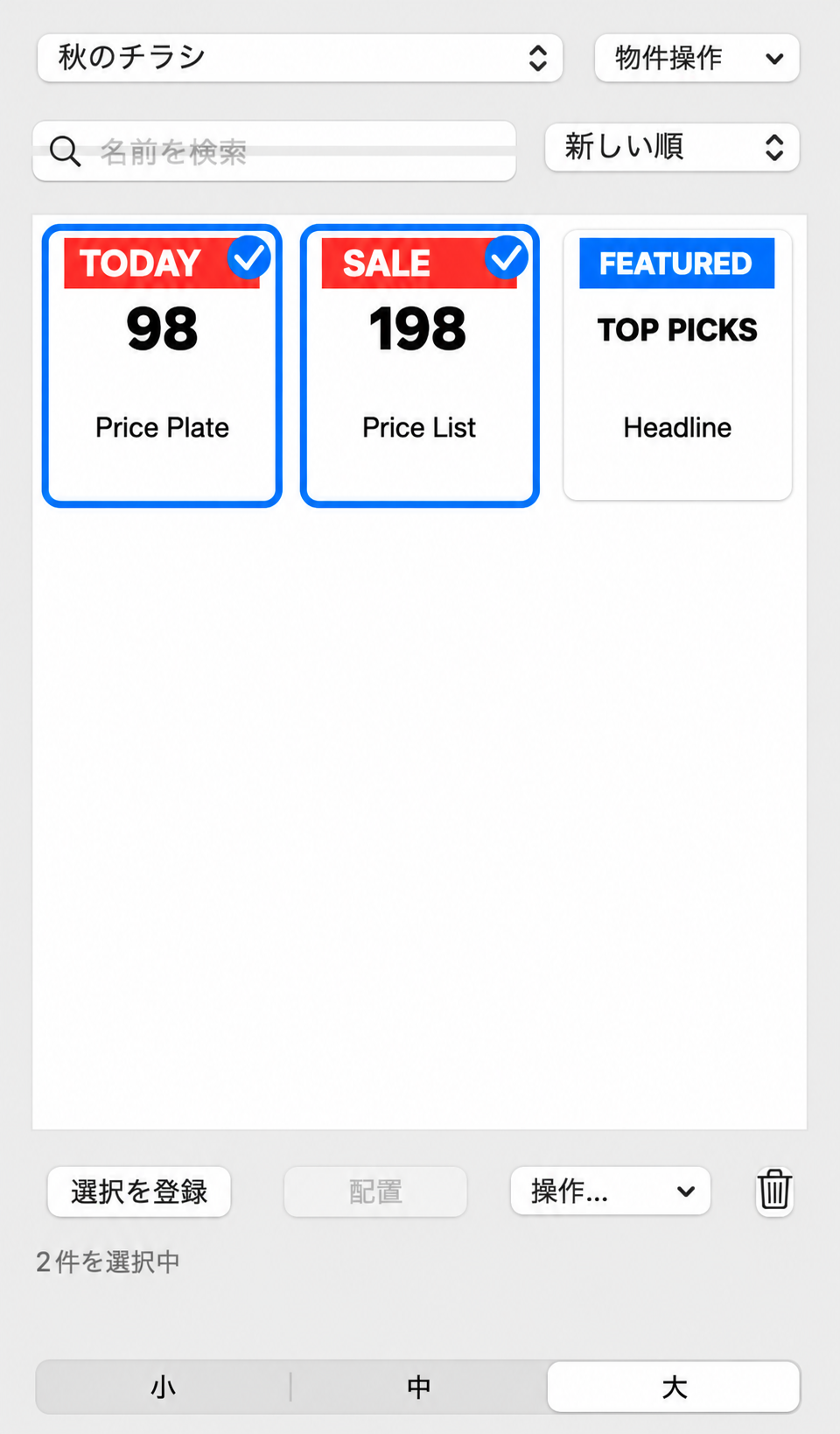
Use Small, Medium or Large for one, two or three columns. Double-clicking the panel tab cycles through these sizes. Increasing panel height expands the thumbnail area. Scroll with the mouse wheel or trackpad; search by part name.
Panel options contain Display language, Enlarged preview on hover, Manual and License activation. Hover enlargement is off by default. When enabled, a larger image appears after about 0.55 seconds and closes on clicking, dragging or scrolling.
Right-click older thumbnails and choose Refresh preview to regenerate their PNG from the saved AI artwork. Multiple selected parts can be refreshed. This does not rewrite the AI original or editing metadata. Preview images use roughly 1,024 pixels on their longest edge. Low-resolution source images cannot gain detail that is absent from the original.
The shelf decodes visible images only and releases offscreen images. Project switching and searching still process the item list, so larger libraries can take longer.
The basic UI supports Japanese, English, Simplified and Traditional Chinese, Korean, German, French, Spanish, Portuguese, Italian, Russian, Arabic and Hindi. In languages other than Japanese and English, some error explanations are displayed in English. Manuals are currently available in Japanese and English; other languages fall back to Japanese.
Managing parts and projects
Command-click adds or removes a selection; Shift-click selects a range. The trash button deletes selected parts. Deletion is recoverable through Restore deletion. Empty trash… asks for confirmation, then permanently removes recovery data. Restore anything you need before emptying it.
Right-click a thumbnail for Rename, Details, Refresh preview, Update from selection, Duplicate and Delete. Updating from selection replaces the library’s original after confirmation and retains the previous version for recovery. The Project menu includes creation, renaming, deletion and restoration. Projects appear in recently used order.
Choose manual ordering and drag thumbnails within the panel to rearrange them. Registration saves immediately after success. The plug-in never automatically overwrites the open AI document. Save placed artwork through Adobe Illustrator as usual.
Export, import and backup
Choose Project → Export… to write an .ailib package, then Import… on another Mac. Import creates a separate project. Export includes AI originals, previews, metadata and collected linked images. Fonts, recovery history, previous versions and panel preferences are not included.
For a complete library backup, quit Adobe Illustrator and copy the entire active storage folder, including recovery history. Removing the plug-in does not delete saved libraries.
Supported artwork
| Artwork | Support and limits |
|---|---|
| Paths, compound paths and groups | Supported as editable artwork. |
| Text | Supported text remains editable; matching fonts are required. Threaded text is not supported. |
| Gradients, spot colours and pattern fills/strokes | Supported within the tested scope. Conflicting spot colours prompt before using the destination definition. Different same-name gradients or patterns stop placement. |
| Clipping and opacity masks | Select the complete supported artwork; finish mask editing first. |
| Linked images | PNG, JPEG, TIFF, PSD and ordinary single-file EPS links are collected. EPS remains linked; its internal artwork is not converted to editable paths. DCS and detected external EPS references are not supported. External EPS fonts are not collected. |
| Live effects and embedded rasters | Supported effects and embedded raster images can be registered as a complete selection. Required effect plug-ins must be installed. Not all effects and settings are guaranteed. |
| Brushes | Supported calligraphic and art brushes. Pattern brushes and other brushes are not supported. |
| Other limits | Symbols, meshes and linked AI, PDF or SVG files are not supported. Selecting only anchor points, editing text or incompletely selecting masked artwork is not supported. |
CMYK/RGB or colour-profile differences prompt before conversion to the destination. Colours may change. Missing fonts, links or unsupported data produce an explanation and stop the operation. Check the artwork and editing behaviour in a duplicate document, especially before print delivery.
If placement fails, record the complete error and try the Place button. CPU/GPU canvas mapping includes the ruler correction. Check the supported host version if this problem persists.
Trial and activation
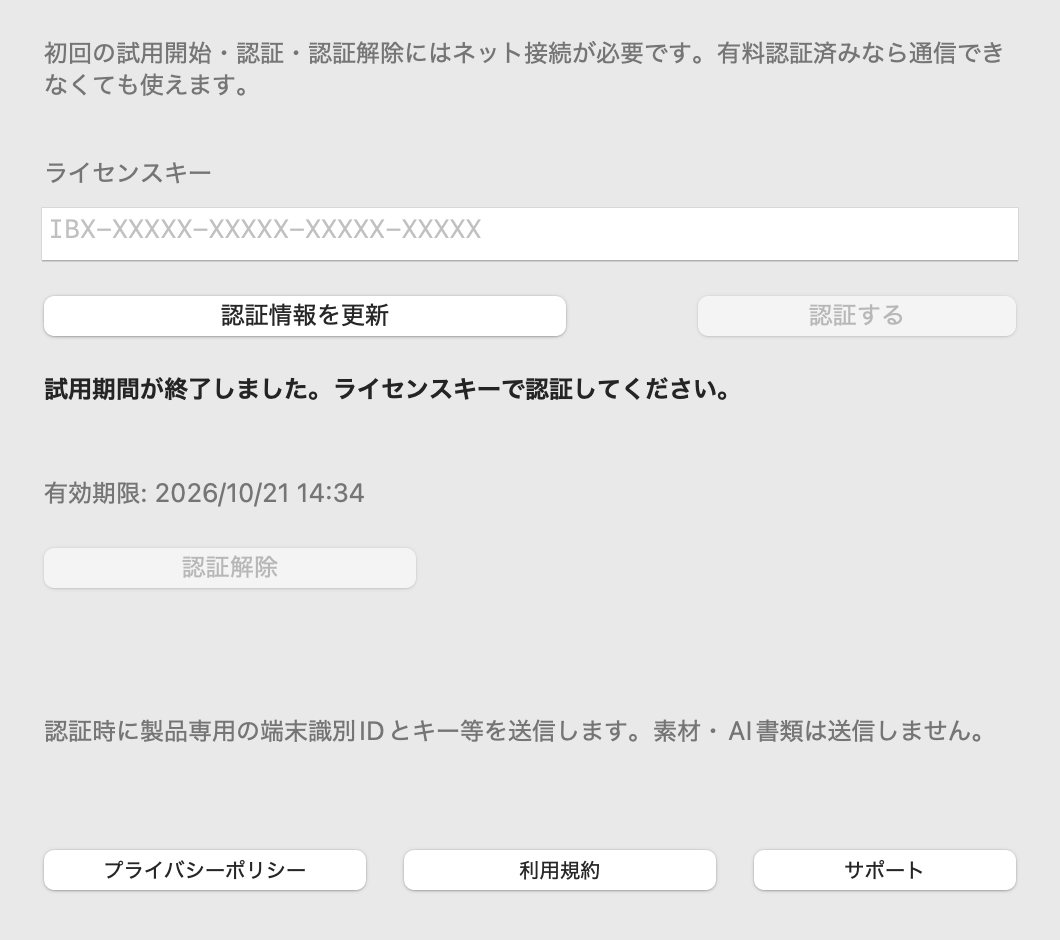
The first online trial request starts a seven-day trial. Afterwards registration, placement and library changes require activation. Saved assets are not deleted. Open Panel options → License activation, enter the IBX-… key and click Activate. One purchased key is for one user and up to two Macs.
The purchased licence has no fixed usage term. The next check date is an authentication-renewal date, not a subscription expiry. About 30 days later, renewal is attempted at startup. Existing signed paid activation continues during network or server outages; explicit suspension or invalid activation can still disable access. There is no per-second network check. The trial is not extended.
Enter the same key on the new Mac. If two Macs are already activated, choose Switch and activate in the confirmation dialog to replace the earliest activated Mac. The replaced Mac stops working after its next online check. Cancel leaves both existing activations unchanged. You can also use Deactivate on a Mac you no longer use; internet access is required.
Privacy policy
株式会社arrow graphics provides SozaiBox. Contact support@arrow-graphics.net about personal information or support.
Information and purposes
- A product-specific device ID, derived as a one-way hash of the Mac’s hardware identifier and product-specific text, is used to manage trial dates, licensed devices and misuse. Raw hardware identifiers and MAC addresses are not transmitted. The digest is still treated as device-identifying information.
- Licence keys, activation identifiers and credentials are used for activation, validation and deactivation. The normal licence database stores a verification HMAC rather than the plaintext key. Authentication timestamps, results and status changes are recorded.
- The web server receives IP addresses and access timestamps for access logging and abuse prevention.
- Support emails and information voluntarily submitted are used to answer questions and investigate problems. Do not attach confidential documents or the full licence key unless requested.
Communication and local storage
The plug-in contacts the API to start the first trial, activate or deactivate a key, manually renew authentication, and renew due paid authentication at startup after about 30 days. Artwork, AI documents, images, fonts and project names are not sent to the authentication API. Library data and operation logs remain on the Mac. Users choose whether to submit logs to support; logs may contain file paths and project names. Authentication information and clock history are kept in macOS Keychain.
Retention and requests
Licence, activation and trial records are retained while necessary for licence administration and preventing repeated trials. Deactivation revokes permission; it does not erase historical server records. Current web access-log settings rotate weekly and retain four rotations plus the active log; scheduling and backups may affect actual erasure dates. Contact support about access, correction or deletion. We verify the requester and consider applicable requirements and necessary licence records.
Service providers
The authentication service is hosted in the Sakura Internet server environment in Japan. API traffic uses HTTPS. If purchases use a sales platform, consult that platform’s information notices as well. This plug-in contains no advertising-tracking or behavioural-analytics feature.
Version dated 14 October 2026. Material changes will be posted on this page.
Terms of use
SozaiBox is an independent Adobe Illustrator asset-library plug-in provided by 株式会社arrow graphics.
Trial and licence
A seven-day trial begins with the first successful online trial issuance. A purchased perpetual licence is for one user and two activated Macs. Keys may not be shared between users or publicly distributed. A perpetual usage right does not guarantee compatibility with every future operating system or host release, or indefinite support.
Authentication
Initial trial issuance, activation and deactivation require internet access. Purchased activation is periodically validated. A network outage does not erase an existing signed paid activation. Invalid, suspended or revoked activation may restrict use. Deactivate an old Mac before changing devices; contact support if it cannot be used. Reinstallation or deactivation does not restart the trial.
Purchases
Price, payment methods, tax treatment and refund conditions are stated on the applicable sales page at purchase. The manual does not set a fixed price. Consult the sales platform’s conditions as well.
Artwork rights and backups
Users must have the necessary rights to use, copy and transfer their artwork, images and fonts. Installing SozaiBox does not grant redistribution rights to third-party material. These terms do not transfer ownership of users’ registered artwork to us. Fonts are not included in library exports. Follow the documented support limits, test valuable artwork in a duplicate document and keep backups of the library and working documents. Collect document links separately for delivery.
Support and changes
Contact support@arrow-graphics.net about problems or activation. These terms do not restrict rights granted by applicable law. Revisions will be posted here with their date and changes.
Version dated 14 October 2026. The Japanese text governs if translations differ, subject to applicable law.
Support and publisher
株式会社arrow graphics
support@arrow-graphics.net
Include your plug-in version, Adobe Illustrator version, macOS version, reproduction steps and the complete displayed error. Remove confidential information from test artwork. You do not need to include a complete licence key in the first message.
SozaiBox is independently provided by this publisher; it is not developed or supplied by Adobe.
Adobe and Illustrator are either registered trademarks or trademarks of Adobe in the United States and/or other countries.